Wealthbox Is Now Available in Apple’s CarPlay
October 29, 2026 · 4 min read
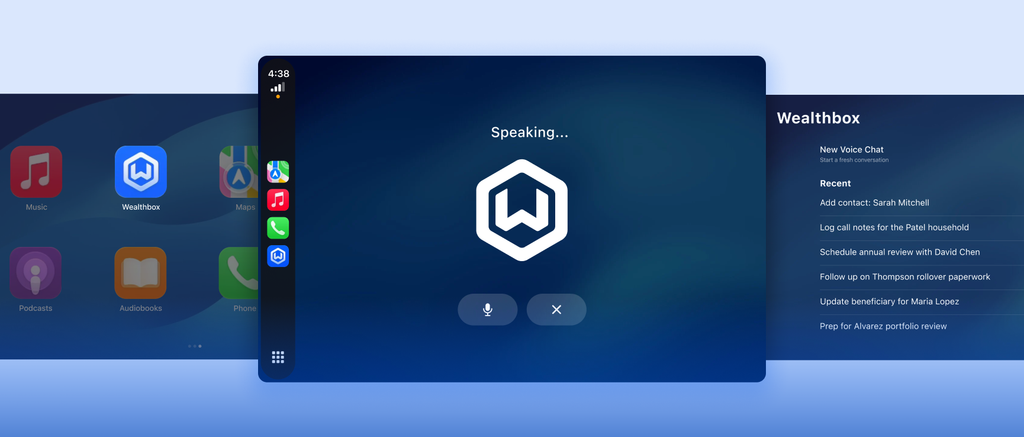
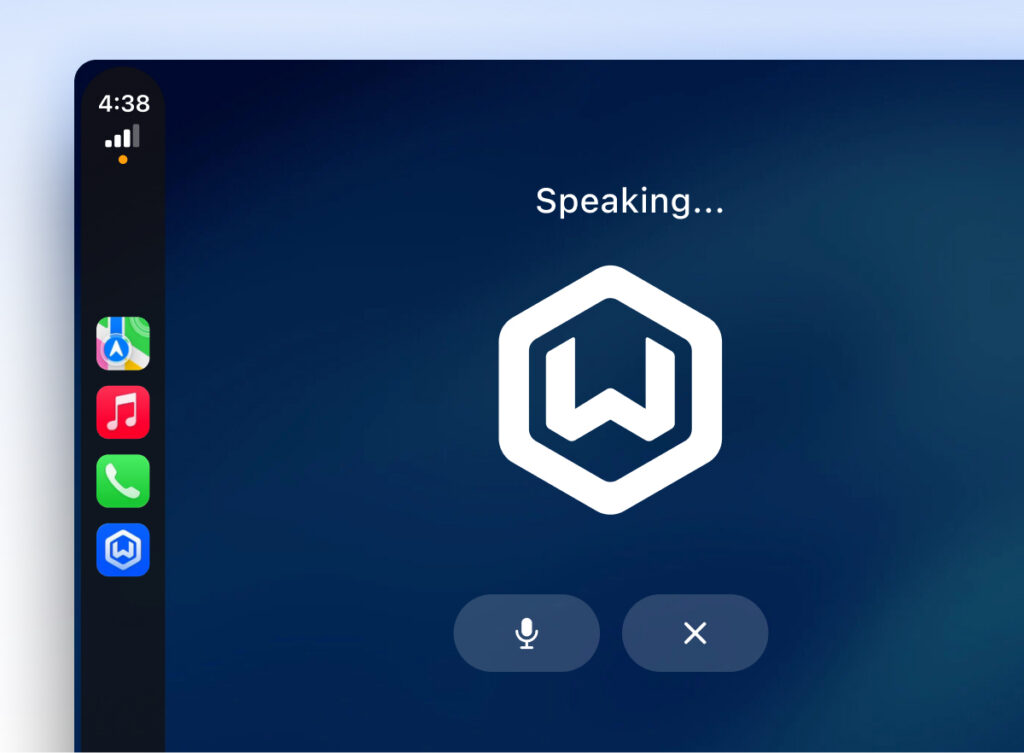
Wealthbox is excited to introduce Wealthbox in CarPlay. Advisors can now talk to the Wealthbox AI Assistant from their car to add contacts, log notes, create follow-up tasks, and ask about their day, without picking up a phone or waiting until they’re back at their desk.
The drive after a client meeting or networking event is when the details are freshest, and when they’re hardest to capture. With Wealthbox in CarPlay, that drive becomes time advisors can use to get their CRM work done.
This post covers how advisors can talk to Wealthbox from their car, how Wealthbox checks with them before it changes a record, how they can pick up the conversation back at their desk, and how to get started.
Talk to Wealthbox From the Driver’s Seat
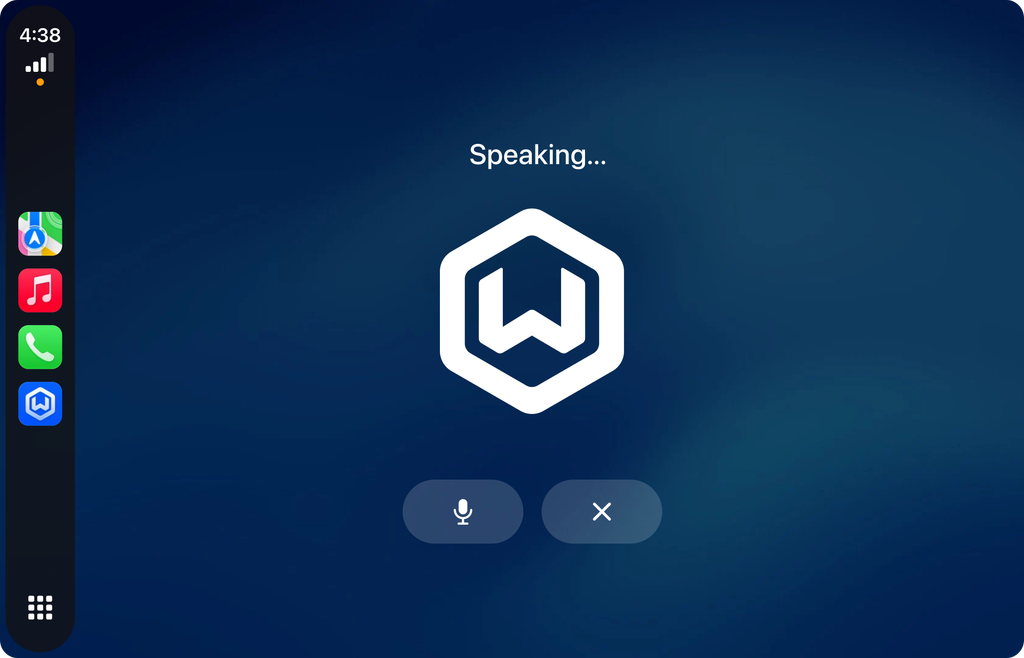
Wealthbox in CarPlay brings the Wealthbox AI Assistant to the car’s display. Advisors tap the Wealthbox icon, start a new voice chat, and say what they need in plain language.
Say an advisor has just left a networking event. They might tell Wealthbox: “I just met a prospect named Stella Blue. Add her as a new contact.” Then: “Add a note to Stella: Met Stella at a networking event; she’s looking for a new advisor.”
From the car, advisors can ask Wealthbox to:
- Add new contacts
- Log notes on a contact’s record
- Create follow-up tasks
- Answer questions about their day
Wealthbox Asks Before It Makes a Change
Before Wealthbox adds or changes anything in the CRM, it tells the advisor what it’s about to do and asks for their OK. The advisor says “yes” to approve, or tells Wealthbox what to change.
Nothing is saved to a client record until the advisor approves it, so advisors stay in control of their data, even from behind the wheel.
Pick Up the Conversation Back at the Office
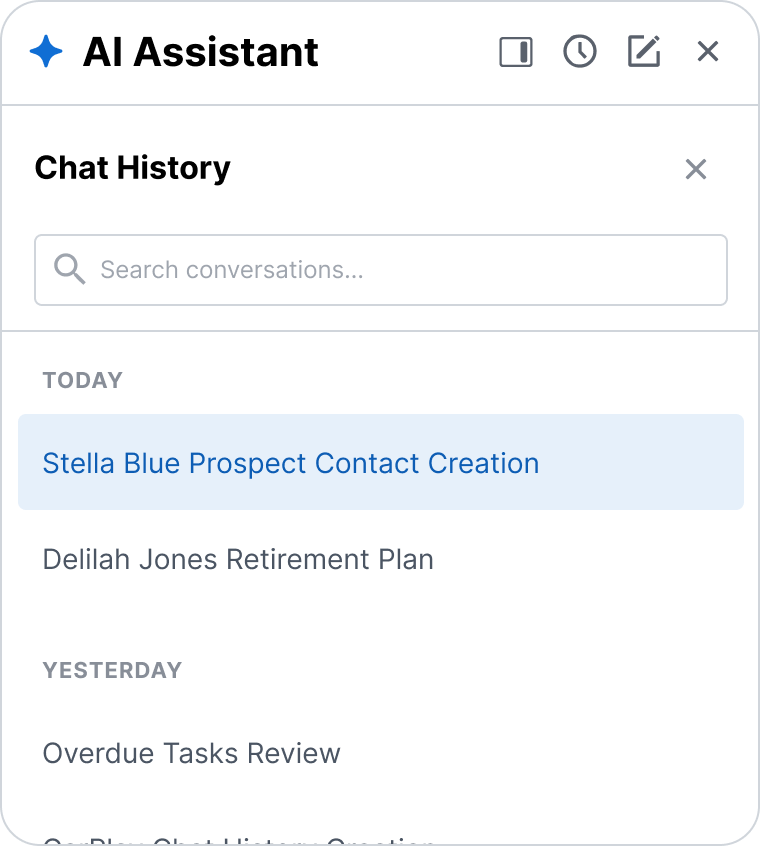
Every conversation an advisor has with Wealthbox in the car is saved to their AI Assistant chat history. Back at their desk, they can open the AI Assistant in Wealthbox to see the full conversation and keep going.
The contacts, notes, and tasks approved on the road are already on the client’s record, so there’s nothing to re-enter. Opening Stella’s record shows the note dictated from the car. From there, the advisor can ask the AI Assistant to create a follow-up task for next week.
Getting Started
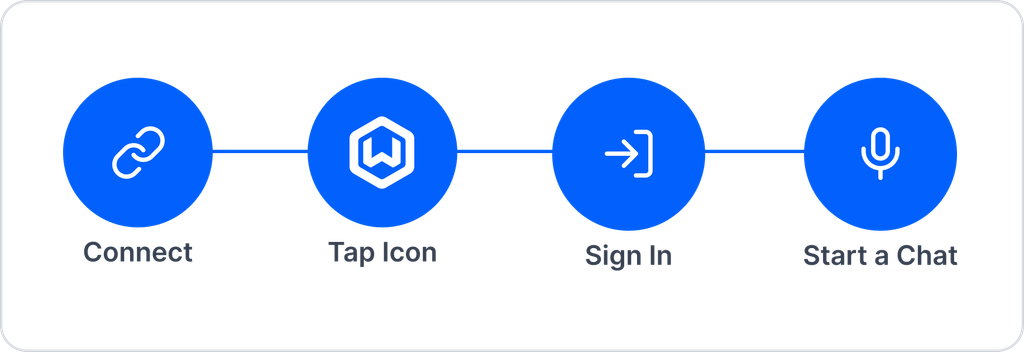
Advisors who already use the Wealthbox mobile app on an iPhone don’t need to install a separate app.
- Connect the iPhone to CarPlay.
- Tap the Wealthbox icon on the car’s display.
- Sign in if prompted. Advisors who haven’t signed in to the Wealthbox mobile app recently will be asked to sign in. After that, they won’t need to sign in again as long as they use the app regularly.
- Start a new voice chat and tell Wealthbox what’s needed.
As with any CarPlay app, drivers should keep their attention on the road and follow local laws.
Availability
Wealthbox in CarPlay is available now on all plans for Wealthbox users with an iPhone running iOS 26.4 or later and a CarPlay-compatible vehicle. The latest version of the Wealthbox iOS app is also required.
With Wealthbox in CarPlay, the drive between meetings becomes time to capture what matters. Advisors can add contacts, log notes, create follow-up tasks, and ask about their day by voice, approve every change before it’s saved, and find it all waiting for them back at their desk.