
Introducing Filters and Saved Views for Custom Objects
August 18, 2026 · 4 min read
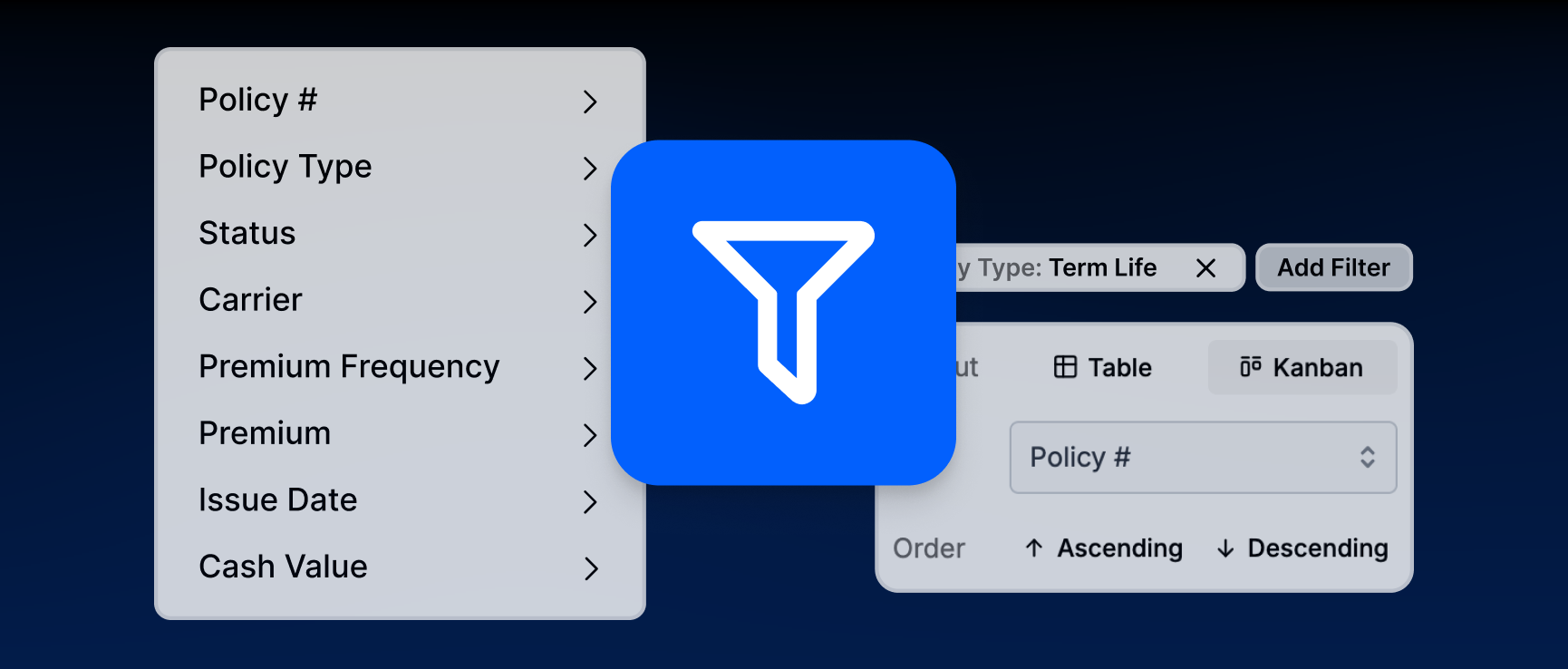
Custom Objects give firms the flexibility to track the information that matters to their business, from insurance policies and trusts to properties, plans, and other custom record types.
Now, it’s even easier to find and work with those records.
We’re excited to introduce Filters and Saved Views for Custom Objects, giving Wealthbox users new ways to quickly narrow Custom Object records, organize the information they need, and return to frequently used views.
Whether you’re looking for policies approaching a renewal date, properties within a certain value range, or records with a specific status, Filters and Saved Views make it easier to surface the right information without digging through your entire list.
Find the Records You Need with Filters
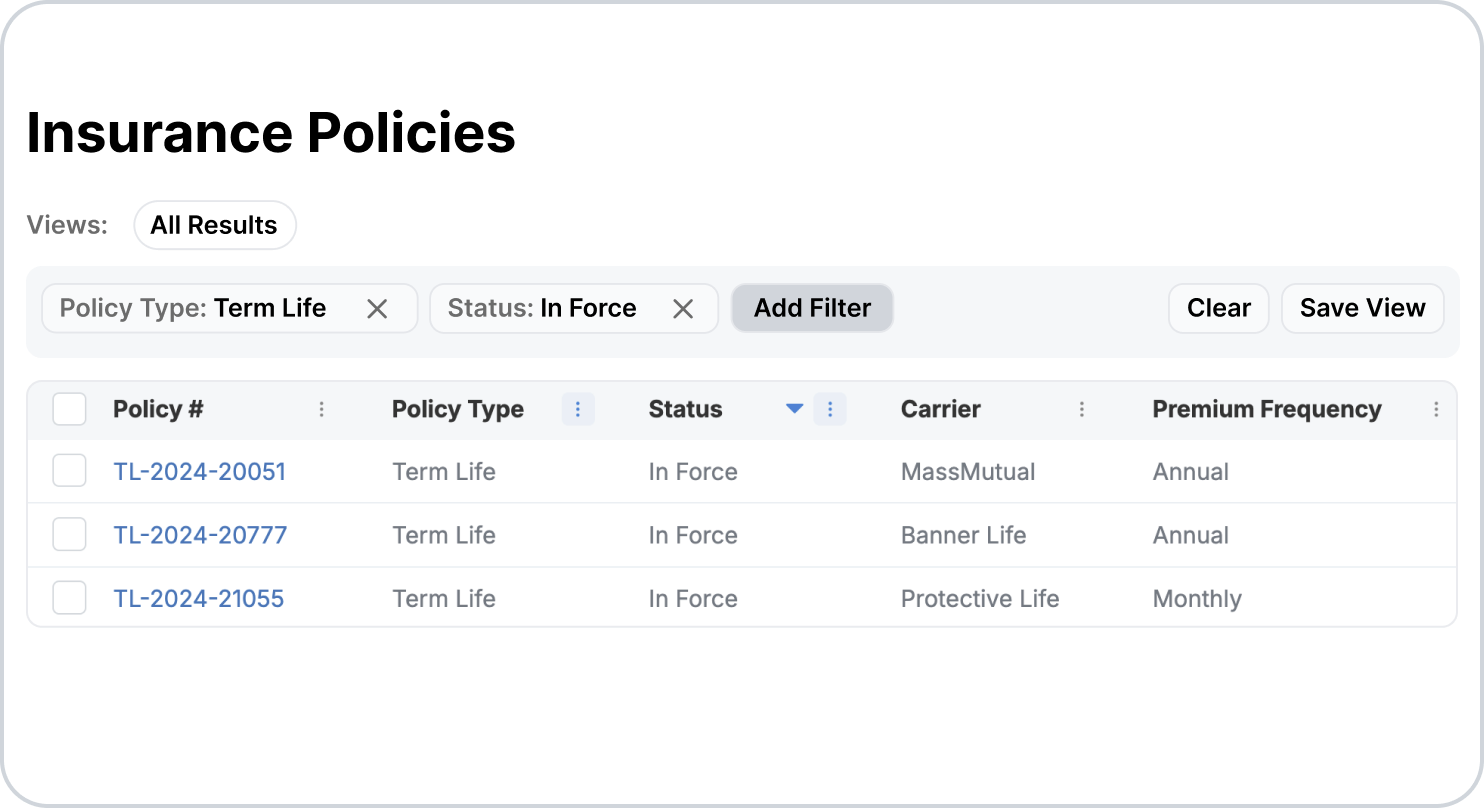
Filters give you a fast, flexible way to narrow the records displayed on any Custom Object index page.
Simply click Add Filter, select a field, and choose the criteria you want to apply. Your results update instantly.
Because Custom Objects can be configured with different types of fields, filtering adapts to the information your firm tracks. You can filter by:
- Text and name fields: Find records containing specific text.
- Number fields: Search for values that are equal to, greater than, less than, or between a specified range.
- Date fields: Choose presets like Today, Last 7 Days, Last 30 Days, This Month, This Quarter, or This Year, or select a custom date range.
- Dropdown fields: Select one or more options and choose whether to include records with no value.
- Checkbox fields: Filter records by Yes, No, or Any.
You can also stack multiple filters to get more specific. When multiple filters are applied, records must meet all of the selected criteria. Within an individual dropdown, selecting multiple values will return records that match any of those selections.
Filter Your List or Kanban Board
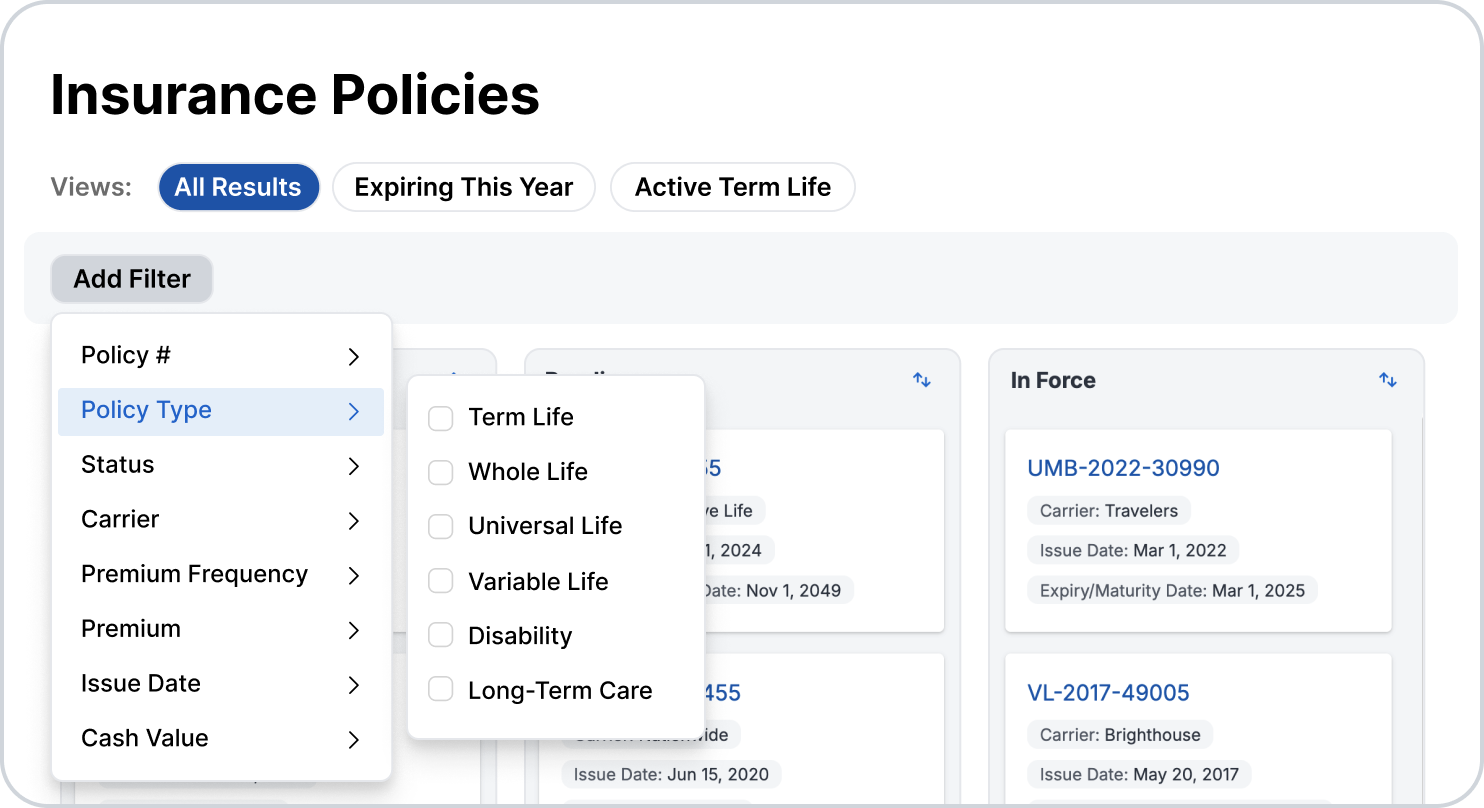
Filters work across both List and Kanban views, so you can narrow your records without changing how you prefer to work.
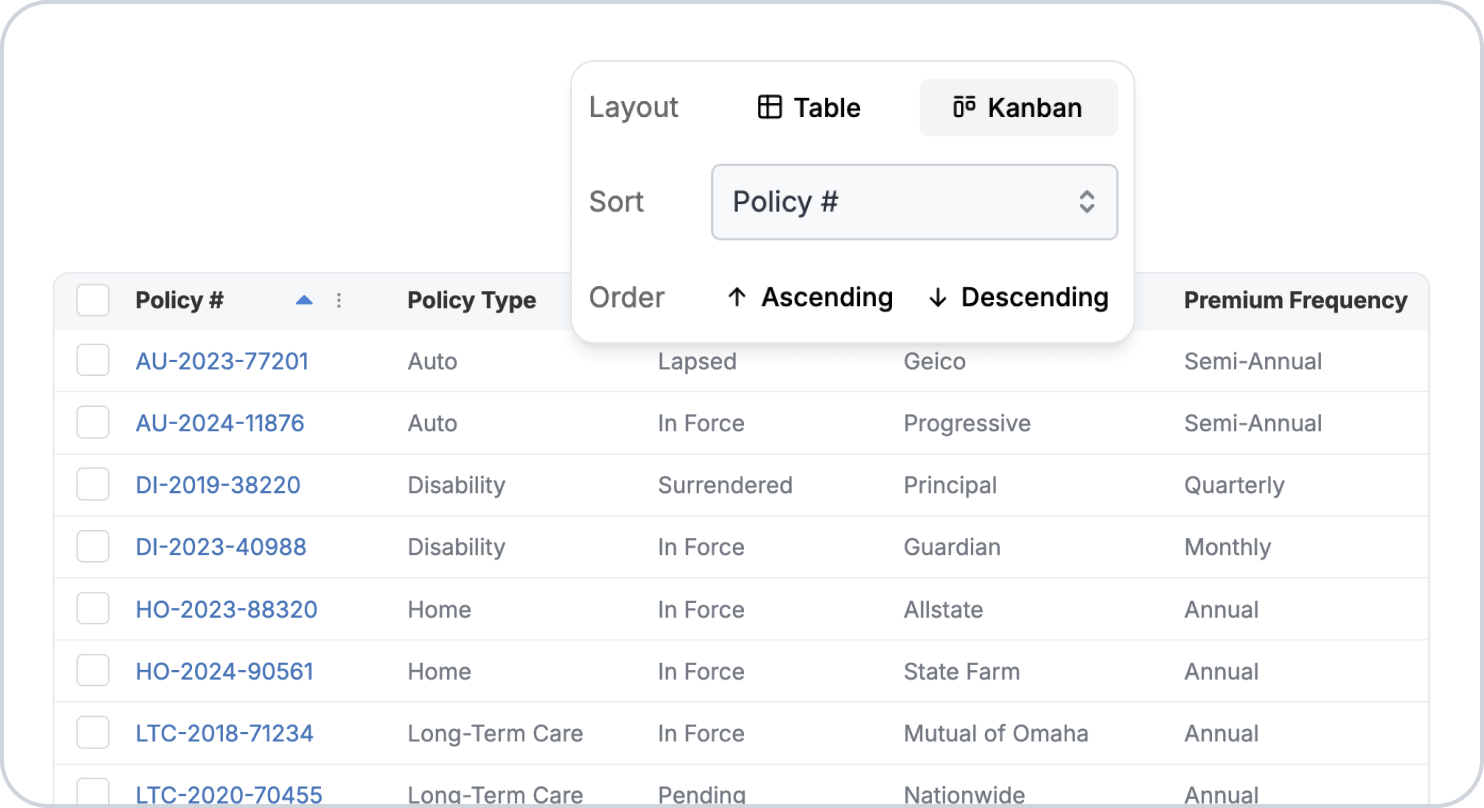
Apply filters in List view or Kanban view, and your filters carry over automatically.
On a Kanban board, your records will continue to be grouped into their existing columns while the filters determine which cards appear. This makes it easy to focus on a specific subset of records while maintaining the visual organization of your workflow.
Save the Views You Use Most
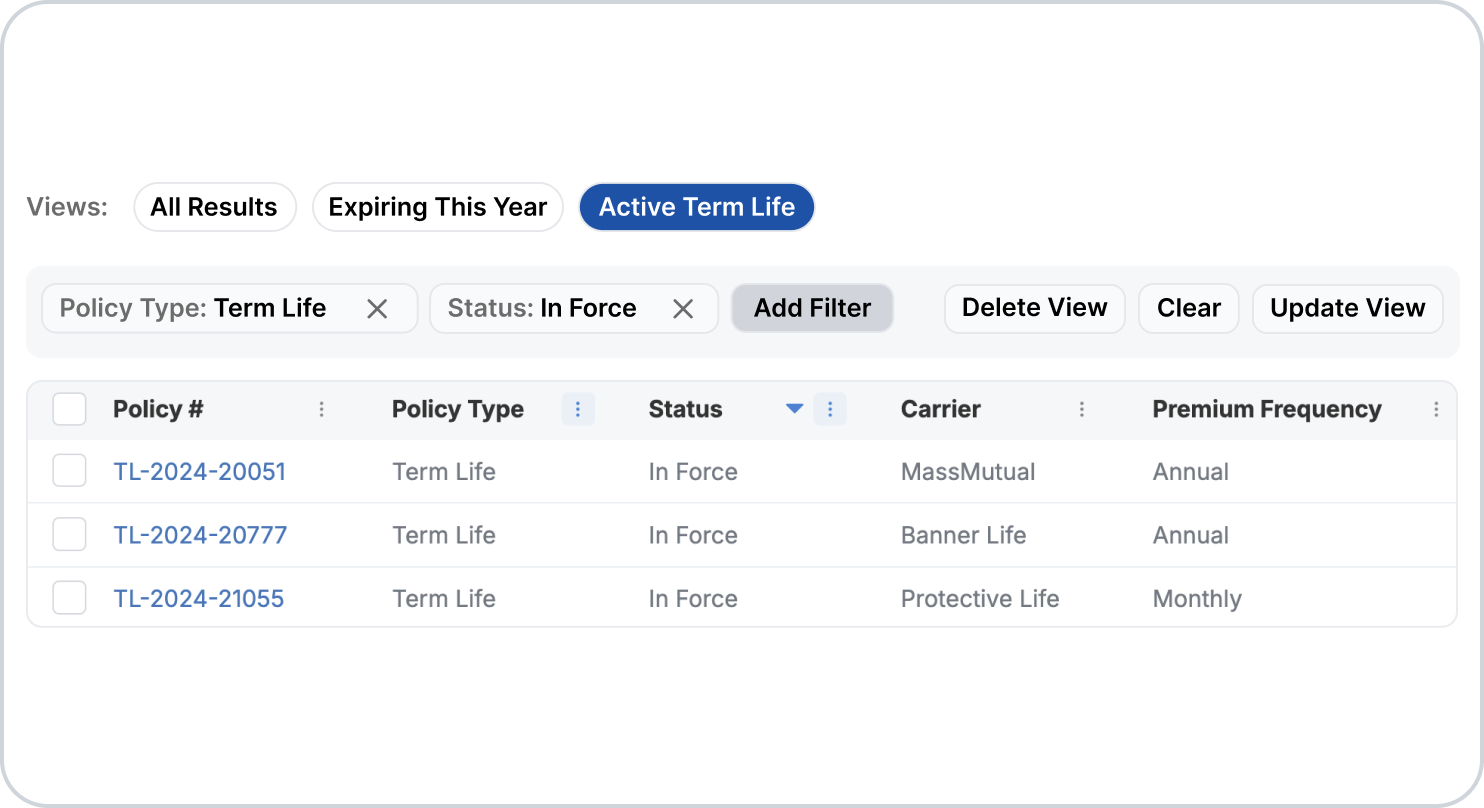
If you regularly return to the same combination of filters and sorting, Saved Views make it easy to pick up where you left off.
Once you’ve configured your view the way you want, click Save View, give the view a name, and it will appear as a pill at the top of the page.
From there, you can:
- Name your views based on the records or workflow they represent.
- Switch instantly between saved views with a click.
- Update a view with new filters or sorting as your needs change.
- Delete views you no longer need.
An All Results view always remains available as the unfiltered starting point.
Saved Views are personal to each Wealthbox user, so you can create the views that are most useful for your own role and workflow.
More Flexibility for the Way Your Firm Works
Custom Objects are designed to help firms adapt Wealthbox to the unique information and processes they need to manage. Filters and Saved Views make that information even easier to work with.
For example, a firm using Custom Objects to track insurance policies could create a view for policies renewing within a certain timeframe. A team tracking client goals could quickly filter records by trust type or status. Or an advisor managing property records could narrow results based on value, dates, or other custom fields.
Instead of searching through every record each time, you can build the view you need once and return to it whenever you need it.
With Filters and Saved Views, Custom Objects become an even more flexible way to organize, find, and act on the information that matters to your firm.